Customize Columns
You can customize the columns shown on various pages and / or sections of a page and how the columns are presented.
After making any changes, it is a good practice to save your changes by selecting either Save New Search or Update Saved Search.
Show or Hide Columns 
Most pages allow you to customize the columns you want to display. Use this option to add or remove columns from your list. Remember to save your changes.
-
Click
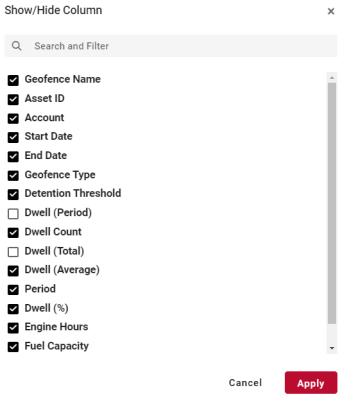
(Show/Hide Column) to view the full list of columns unique to the page.NOTE: The columns selected are unique to the specific page you are viewing. -
Select or clear each check box to indicate which columns to display, and then click Apply.
Reorder Columns
Most pages and reports allow you to reorder columns and column content.
| NOTE: | Not all columns can be moved. |
-
Click and hold the mouse in the column heading you want to move.
-
Drag and drop the column in the new location.

Reorder Column Data
-
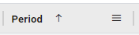
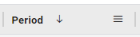
Hover the mouse over the column heading you want to sort, and then click until you see the arrow.
-
Click the arrow to toggle the column data between ascending and descending order.
Filter Column Data
-
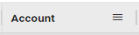
Hover the mouse over the column heading you want to filter until you see the filter menu.
-
Click
 (filter menu) to access the filter options.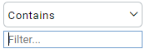
-
Use the Contains drop-down menu to select an option and then type your search criteria in the Filter... field to further filter the data. The column automatically filters the data and a
 appears in the column heading.
NOTE: The “In” option allows you to add multiple filter values separated by a comma and no spaces. For example, in the State column, if you want to view assets in only Texas and Oklahoma, then use “TX,OK” as your search filter.
To remove the filter:
-
Hover the mouse over the column heading, click .
(filter menu), and then clear the Filter field. The search data is updated.