Asset Dashboard
The Asset Dashboard view allows you to quickly access and assess information regarding assets in inventory. It is specifically designed for individuals who manage the planning details for entire fleets of assets.
This dashboard includes several widgets that are applicable for tracking solutions and capabilities. You can customize this page to show widgets and columns that are most critical for your specific task or job. The widgets shown vary by asset type.
Some asset data is specific to the type of device (PT 6000, GT 1200, etc.) installed on the asset.
Real-time data is available for the entire asset inventory and individual assets.
Traffic information is interactive. When you select a specific asset from the asset list, details on all related widgets is updated accordingly.
From the main menu, select Live Map > Asset Dashboard.
Remember to review the frequently performed tasks section for instructions about things like, using searches, customizing views, downloading data, generating live links, using notes, sending commands, setting home geofences, assigning a profile, and so much more.

|
|

|
|
Dashboard Widgets

|
Actions and Information |
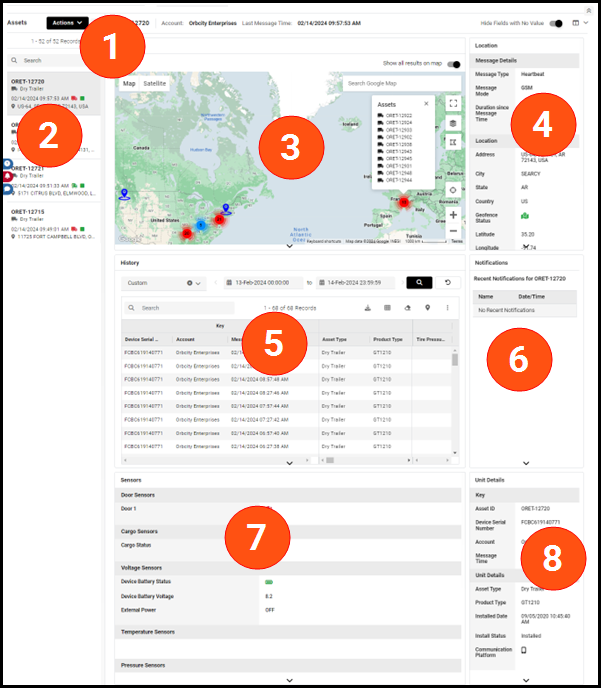
The Actions drop-down menu provides a list of actions you can perform on assets, such as setting up notifications, sending commands, and much more. The information bar identifies the currently selected asset ID in bold, the account name, and the last message time and date for the selected asset. The options on the far right, allow you to indicate if you want to Hide Fields with No Value, and the drop-down menu offers additional options to customize your dashboard. |

|
Asset Inventory | Displays a list of assets in the account along with the latest information for the asset such as asset type, current location, and more. Hover over any colored icon for additional information. |

|
Map | Shows the location for all assets currently displayed in the latest readings, but when an individual asset is selected, it focuses on that asset. Use the Show all results on map slider to return to a view showing all assets. |

|
Location | Provides message details and more specific asset location details than what is presented on the map. |

|
History | Provides historical asset position details for the selected asset for the timeframe specified. Click  to print the historical details. to print the historical details. |

|
Notifications | Displays any notifications for the selected asset. |

|
Sensors | Displays details for any sensors connected to the selected asset. In the case of Reefers, temperature sensor details are presented in graphical (graph) or list (data) format. |

|
Unit Details | Displays details about the asset, such as product type, installation date, asset ID, and more. |
|
|
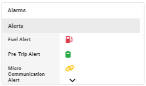
Alarms |
This widget is specific to reefers. It indicates the various reefer alarms and the status of each for the selected reefer. Hover over any colored icon for additional information. |
|
|
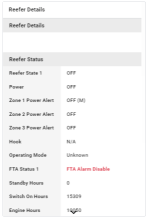
Reefer Status Details |
This widget is specific to Reefers. It displays details about the selected reefer and status details. |


View Specific Asset Details on the Dashboard
-
From Live Map > Asset Dashboard, click one of the assets in the Asset Inventory (2) column. All widgets are updated with details specific to the selected asset.
NOTE: You can further filter this list by specifying details in the search field directly above the list. For example, type "Dry Trailer" to further filter the list of assets.