Customize the Asset Dashboard
Customize the dashboard so that you have easy and quick access to the functions that are most important to you.
You can choose to display the dashboard information in either a tab or card view ( ), and then the card view layout can be further customized.
Widget data is interactive. Selecting an asset on one widget updates the associated data on other widgets. Widgets can also be customized for optimal access to asset data.
Move Widgets on the Dashboard
-
From Live Map > Asset Dashboard, hover over the title bar of the widget you want to move until you see
 .
. -
Click the
 , and then drag and drop the widget to another location on the dashboard.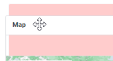
Change the Size of a Widget
-
From Live Map > Asset Dashboard, click
 at the bottom of the widget you want to resize.
 -
Drag the arrow icon to stretch or shrink the size of the widget.
Select a Pre-Configured Layout and Style for the Dashboard
You can choose to display dashboard information in either a tab view or a card view to suite your personal preference. With the card view option, you can further choose from several pre-configured dashboard layouts, which automatically change the default size of the widgets on the dashboard.
To select a view:
-
From Live Map > Asset Dashboard, click
. -
Select either Tab View or Card View.
NOTE: The dashboard immediately re-adjusts to match the selected view. Tab View
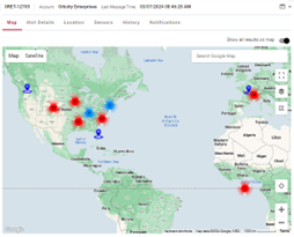
Card View
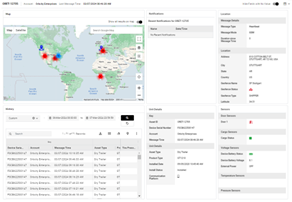
-
If you selected Card View, you could also select a pre-configured layout.
To select a pre-configured layout:
-
From Live Map > Asset Dashboard, click
, and then click Change layout. NOTE: If you do not see this option, you may first need to change the setting from Tab View to Card View. -
In the Select Layout dialog, click a layout option.
NOTE: The dashboard immediately re-adjusts to the selected layout, so if you do not like the presentation, you can select another layout before you click Close to save the change. NOTE: The Asset column is not included in the pre-configured layouts. 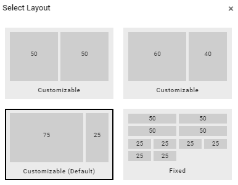
-
Click Close.
You may now want to move the widgets or change their size.